What to eat next, on your phone and your watch.
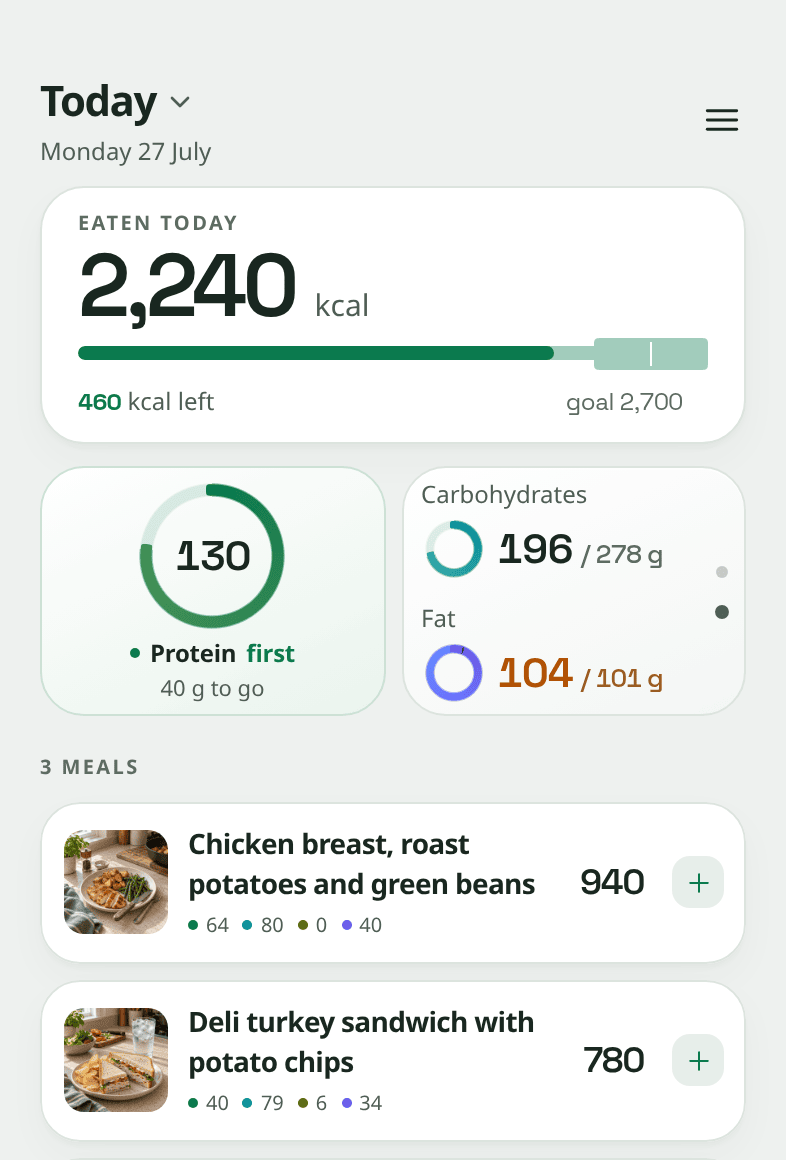
- See your protein left every time you pick up the phone.
- Also on the iPhone Lock Screen.
- Calories and protein on Apple Watch and Wear OS.
- One tap opens the camera.
Two sizes, with different amounts of detail
- The small one is the ring. How far along you are and how many grams are left. One glance, nothing to read.
- The wide one adds the numbers. Grams so far against the target, and a small calorie ring next to it. Enough to decide what dinner should be without opening the app.
iPhone and Android, both widget sizes, back to iOS 17 and Android 8.0.
The same dial on your Lock Screen
You look at the Lock Screen more than any other screen. Add a round or a wide one, as many as you like. They show the same day as the Home Screen widget.
- The round one is the dial on its own. The arc and the number, in a slot the size of a coin. You pick what it counts: protein, carbs, fat or added sugar.
- The wide one says which ring it is. The dial, the name, and how far you still have to go. It answers the question without you unlocking anything.
- It is grey because the Lock Screen greys it. iOS removes the colour and tints it to match your wallpaper. So the wide one shows the name instead.
- Calories has a widget of its own. It is a separate widget, not a fifth ring. Put it next to a ring, and the row under the clock answers both questions at once.
- You can take it back off the Lock Screen. What you ate is health data. Anybody can see your Lock Screen. Turn off Lock Screen widget data in iOS, and only the numbers are hidden.
Lock Screen widgets are an iPhone feature. Android has no lock screen for widgets. So on Android the dial is on the home screen only.
Monday 7 September
9:41
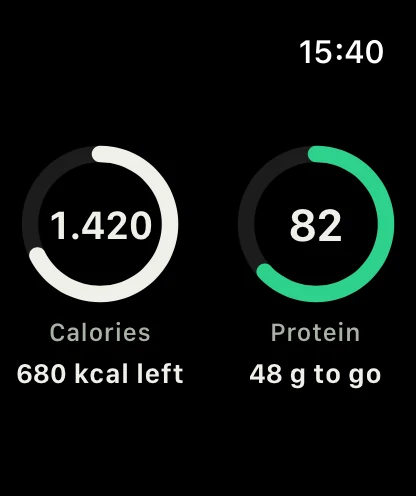
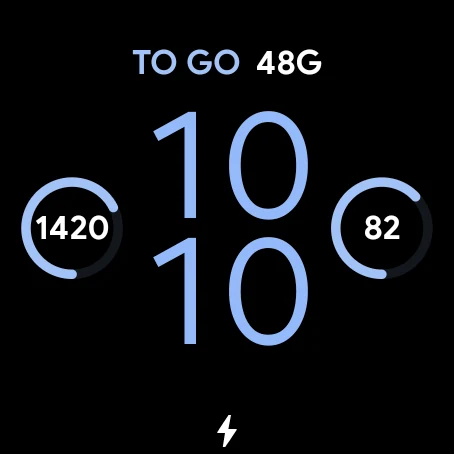
Calories and protein on your watch
Look at your wrist to see what is left today. It works on Apple Watch and on Wear OS watches.
- Two dials for your watch face. Calories shows how much you can still eat today. Protein shows how many grams you still need. Add one, or both.
- They fit the spots on your watch face. On Apple Watch you can pick a round one, a corner one, a wide one, or one line of text. The wide one also goes in the Smart Stack. On Wear OS you can pick a dial, a short number, or a line of text.
- There is an app on the watch too. Open Snapkin on your watch to see both dials side by side.
- Your phone keeps it up to date. Log a meal on your phone. Your watch shows the new numbers. At midnight it starts the new day by itself.
You still take the photo on your phone. Apple Watch works with the iPhone app. Wear OS watches work with the Android app.
No card for the first 3 days. €9.99 a month or €99.99 €49.99 a year, via the app.launch price, for a limited time
One tap from the Lock Screen, straight into the camera
The other two widgets tell you where you are. This one starts a meal. It sits in the row under the clock. Press it, and Snapkin opens with the camera already on.
- It opens the camera, not the app. Press it, and the camera is what you see. Take the picture. It is already on a new meal, waiting for you to send it.
- It says nothing about you. A dial on the Lock Screen shows your numbers on a screen other people can see. This one is just a camera and a word. There is nothing on it to read over your shoulder.
- A round one and a wide one. The round one is just the camera, the size of a coin. The wide one also says Snap a meal. Put either in the row under the clock.
- It always logs today. Even when the last thing you did in the app was look back at last Tuesday. Food you photograph now is food you are eating now. So that is the day it lands on.
This one is on iPhone only. On Android, widgets only go on the home screen. That is what this one avoids. You still unlock once, but you are already pointing at your plate.
What it does when it does not know
On a widget, a wrong number is worse than no number.
- It updates when you log, not on a timer. Photograph a meal. By the time you are back on the home screen, the dial has already updated. At midnight it starts the new day on its own.
- Calories are on it too. The small ring shows today's calories against your goal. Prefer carbs, fat or added sugar on the big dial? Pick it when you add the widget.
- It never shows a number it does not have. Signed out? It says so. A missing number is shown as missing, not as zero. Zero would mean you ate nothing.
Put it on your phone and your watch
It's that simple. It keeps working through restaurants, holidays and busy weeks. There is nothing else to keep up with.
No card for the first 3 days. €9.99 a month or €99.99 €49.99 a year, via the app.launch price, for a limited time